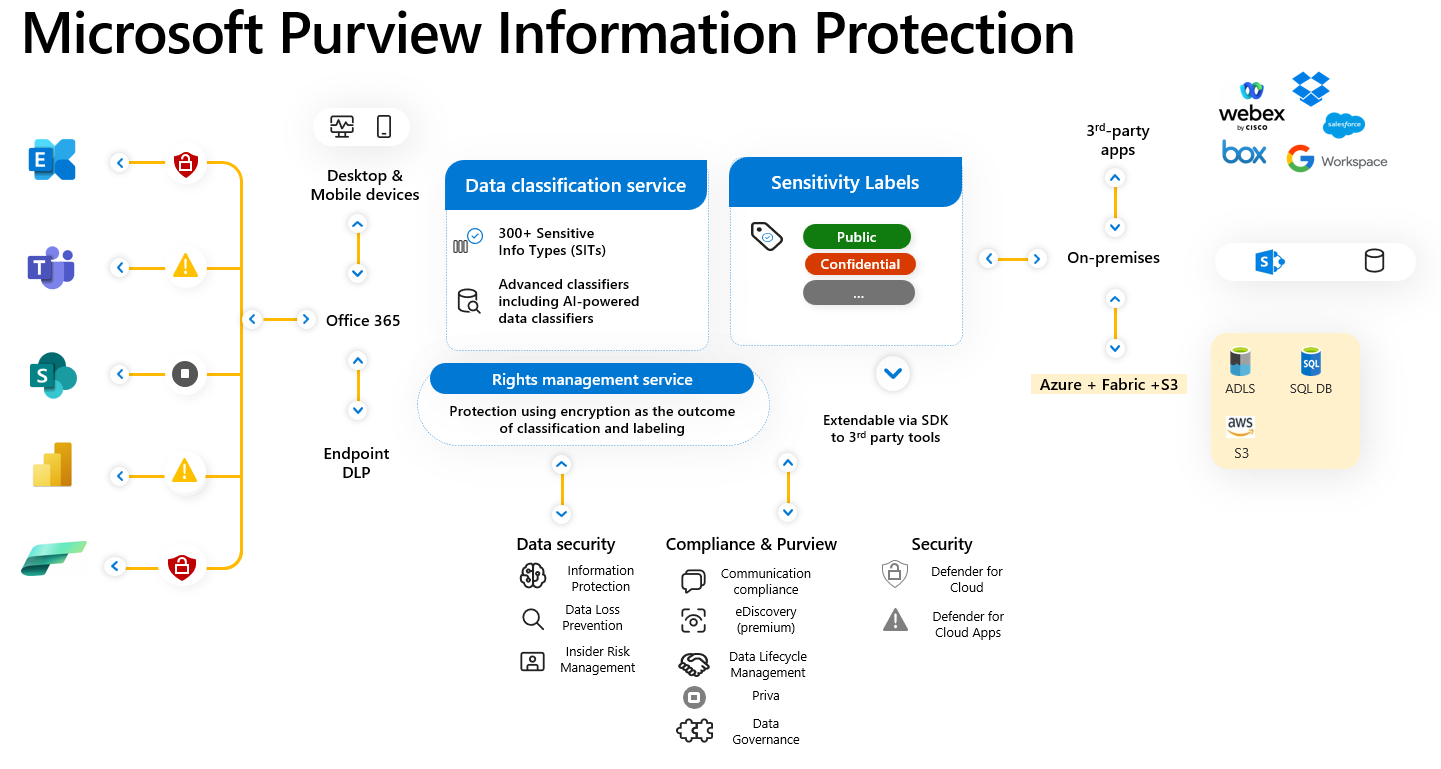
Sensitive data management and long-term retention are of paramount importance in today's digital world. Proper handling of sensitive information and adherence to retention policies are critical, not only for security and privacy, but also for regulatory compliance. In our latest blog post, we dive into the topic of "Sensitivity and Retention Labels with Purview", and we show you how you can use these powerful tools to effectively protect, organize and retain your sensitive data for the long term. Learn how Microsoft Purview can help you stay in control of your data while meeting data protection and compliance requirements.
Source: Microsoft.com
What are sensitivity labels?
Sensitivity labels (also known as protection classes or protection markings) are a method of labeling information or data to indicate its security or confidentiality level. These labels are used to ensure that sensitive or confidential information is appropriately protected and handled.
With Purview, you have the option of defining various presettings for a sensitivity label. Here is an overview:
Encryption: Mails, meeting invitations and documents are encrypted. When creating the sensitivity label, you can select whether the user can define which persons have access or whether the authorized persons are predefined. It is also possible to define which actions may be carried out by the user.
Marking: Headers and footers can be applied to labeled documents, meeting invitations and e-mails. Watermarks can also be defined for documents.
Microsoft Teams, SharePoint and M365 Groups (Containers): If activated, settings for access from external, unmanaged devices and sharing settings can be defined.
Automatic application of a label: It can be defined which documents, e-mails and meeting invitations are to be classified and with which label or the user can be shown a "policy tip" which suggests a sensitivity label.
Scope: When creating the label, you can select the scope for which the label is valid. You can choose from the following: Items: Files, Emails, Meetings
Groups & Sites: Privacy, access protection and more for Teams, M365 Groups and SharePoint sites
Schematized data assets (preview): Labels are applied to schematized data in Microsoft Purview Data Map (SQL, Azure SQL, Azure Synapse, Azure Cosmos, AWS RDS etc.).
Prioritization and grouping: The labels are assigned a priority, starting at 0 (lowest priority). Prioritization is used when the automatic labeling function is activated in order to assign the label with the highest priority to each of several applicable labels. Furthermore, one or more sub-labels can be created for the respective labels. The settings of the parent label are not inherited. The sole purpose of parent labels is the logical grouping of sub-labels.
How can sensitivity labels be used?
In order to be able to use the sensitivity labels, they must be published for the users. This is done by creating a label policy. The following settings are defined in the label policy:
Users & Groups: The labels can be made available to specific users or groups.
Default Label: Define a default label that is applied to documents, emails, meetings and containers. If sub-labels have been set up, the parent label should not be used as the default.
Label change: The labels of items can be changed by the user. It can be defined in the policy whether, for example, a reason must be given by the user when changing to a label with a lower priority.
Mandatory labeling: Defines whether a label must always be assigned for items and containers. The user is prompted to assign a label when the container is created or when an item is created.
Help link: A help link is displayed to users in the labeling context to support them in assigning a label, e.g. link to an internal SharePoint page.
Several policies can be assigned to users and groups. If several policies fulfill the conditions, the policy with the highest priority is applied. The priority is assigned numerically, starting at 0 (lowest priority).
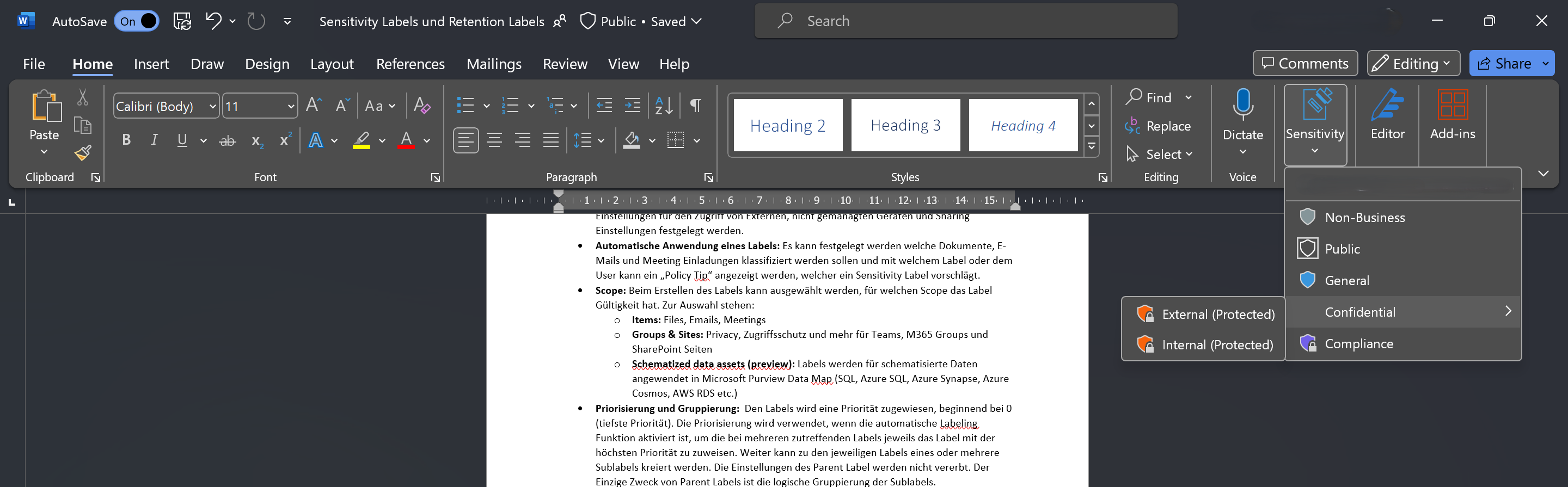
A label can either be set directly in the application, for example in Word (see image below), or the label can be applied simultaneously to several files that fulfill certain conditions.
Applying a sensitivity label in Word
The "Auto labeling" setting is used for the automatic application of labels. Sensitive infotypes or trained classifiers are defined in this setting and the label is automatically applied when they are used. In addition to the setting in the label itself, auto-labeling policies can also be created. There are other options such as file policies in Microsoft Defender for Cloud, which will be covered in a later blog post.
Examples of sensitivity label and label policy
The various configuration settings available for sensitivity labels and label policies can be used to cover a wide range of use cases. For example, a label can be created to identify emails that can only be read by the recipient. This is ensured by the encryption of the email and the rights management service. It can also be defined that such emails cannot be forwarded or printed.
Another example would be to create a label with which access to files is only permitted to users from your own organization or a limited group of users. However, it can also be left to the user applying the label to assign the access authorizations. Further scenarios for the use of sensitivity labels can be found on the Website from Microsoft.
What are retention labels and retention policies?
Retention labels can be used to define the retention period and actions to be performed after expiry at folder, document or email level. Retention policies can be used to define this at SharePoint site or mailbox level.
The labels can be applied manually or automatically. The start of the retention period can be defined based on an event. It is also possible to mark a document or email as a "record", which makes further actions available after the retention period has expired, such as a "Disposition Review", which requires confirmation of whether the content can be deleted.
For retention labels and policies, in addition to the distinction at which level they can be applied, there are also Functional differencesFor example, the storage settings of a label move with the item, regardless of where it is stored in the company.
How are retention labels used?
To be able to use retention labels, they must be published in the same way as the sensitivity labels. The following settings can be defined in the label policy for retention labels:
Administrative units: These are containers that contain Microsoft Entra resources such as devices, users and groups. The policy can be published for the entire directory or specific admin units.
Scope: A distinction is made between static and adaptive scope.
Static scope: The policy can be applied to Exchange mailboxes, SharePoint sites, OneDrive accounts and Microsoft 365 groups and mailboxes. Exceptions can be defined per location.
Adaptive scope: The policy is applied to different locations as with the static scope. Instead of excluding or including individual users, sites or groups, criteria can be defined based on attributes of users, SharePoint sites and M365 groups, which are used to define the scope. The adaptive scopes support various attributes such as department, region, country, site URL and much more.
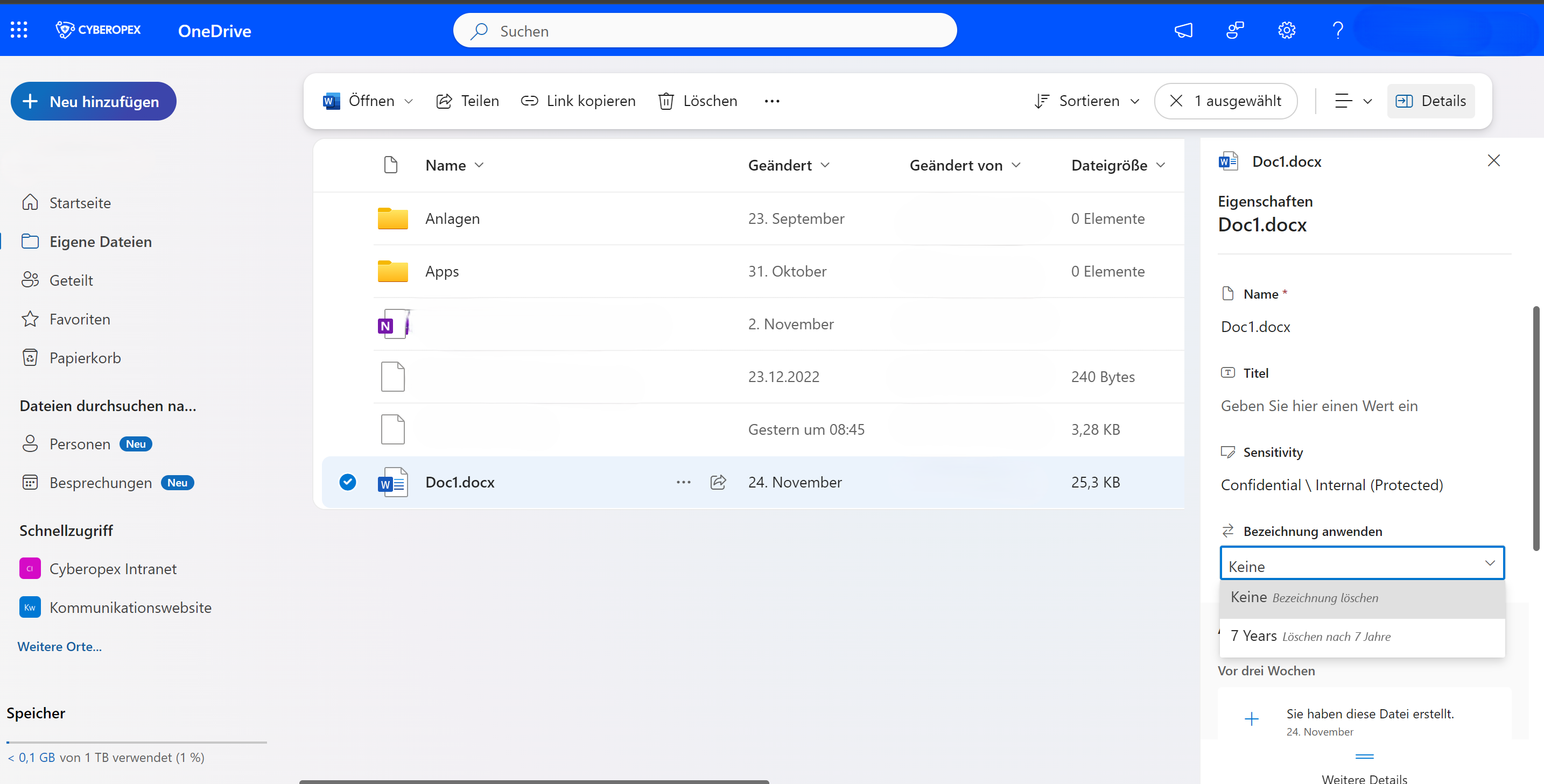
After publishing the labels, they can be applied via the context menu of the file or e-mail (see image below).
Applying a retention label in OneDrive
Example retention policy
Microsoft 365 has standard retention periods for items in SharePoint, OneDrive and Exchange Online:
Exchange Online: Deleted emails from the "Deleted Items" folder can be restored for up to 14 days. This setting can be increased to up to 30 days in Exchange Online by the admin.
SharePoint Online and OneDrive for Business: Deleted items are kept in the recycle bin for 93 days. The versioning functionality saves multiple versions of an item.
If a user leaves the company or the license is removed, the mailbox is marked as "to be deleted" and permanently deleted in 30 days. The OneDrive folder is also permanently deleted after 30 days. However, this setting can be increased to up to 3,650.
To keep the mailbox for longer, a retention policy must be defined for Exchange Online:
Type: Static
Locations: Exchange E-Mail - Included: All recipients, Excluded: None
Retention settings: Retain items for a specific period - 5 years, Start: When items were created, End: Delete items automatically
With such a policy, inactive mailboxes can either be assigned to a new user account or to an existing user account. If the mailbox is assigned to an existing user, a copy is created and the original is kept as an inactive mailbox.
Example retention label
Retention labels can be used to implement specific retention scenarios, for example due to legal or regulatory requirements. Possible items that could require specific retention periods:
Contracts
Patents
Meeting Minutes
Budget
HR Incidents
Personal documents
Retention labels for such documents could be defined to be kept forever:
Name: Keep forever
Retention settings:
Retain items forever
For Microsoft 365 Groups (e.g. MS Teams), there is also the option of defining an expiration policy. This policy defines how long a group should remain in existence and the owners of the group are informed before expiry, with the option to extend. Furthermore, an e-mail address can be stored that is informed about "orphaned" groups.
Conclusion on Microsoft Purview
Microsoft Purview offers a wide range of solutions that work together to create a robust, flexible and integrated platform for data management and compliance. At this year's Microsoft Ignite, further functionalities were demonstrated, such as integration with Microsoft Copilot. In our next blog post, we will take a closer look at the Sensitivity Labels and Retention Labels and show how they could be used in your company. If you would like to find out more about Microsoft Purview, please do not hesitate to contact us.
FAQ
More on the topic of sensitivity and retention labels
Where can sensitivity labels be used?
The sensitivity labels can be used in different apps for different items/documents. A document can have one sensitivity label and one retention label per organization:
Microsoft 365 apps (desktop, web & mobile version)
SharePoint Online (Sites, Libraries & Lists)
OneDrive for Business
Microsoft Teams (Files shared, Channels, Meetings)
Windows File Server (Files & Folders)
Power BI
Adobe PDFs
Other Document Formats and Apps (Microsoft Information Protection SDK / Microsoft Defender for Cloud Apps)
How many sensitivity labels can be created?
There is no upper limit for unencrypted sensitivity labels. For labels with encryption, the upper limit is 500, but the principle is that the fewer the better.
Which file types are supported?
All Office Open XML formats such as .docx, .xlsx or .pptx and PDFs are supported. Older formats such as .doc, .xls or .ppt (Office 97-2003 format) and open document formats such as .odt or .ods are not supported.
Can multiple retention policies or labels be assigned to a user, container or group?
Several retention policies can be applied simultaneously to a user, container or group. In the event of conflicts, the stricter or shorter retention or deletion period prevails. A single item can only have one retention label at a time. Several labels can be published, but only one applies per document or email.
What license is required to use Sensitivity Labels and Retention Labels?
A list of the different licenses and which functions are available with the license can be found here
HOW CAN WE HELP ?
Contact our experts at CYBEROPEX
We look forward to your inquiry and will do our best to answer it promptly.